START HERE
Install Skiff
-
Skiff on the FM-1
Skiff is free firmware for the M-VAVE FM-1 (GPL-3.0) that turns it into a six-track groovebox: synths and drums, patterns and songs. Here it plays the beat you make in chapter 3: PLAY starts it and stops it.
This chapter puts Skiff on your unit from the browser, and shows the way back to the official firmware, M-VAVE's V15.
-
Try it first
Try Skiff runs the same firmware in the browser, on a drawn FM-1: press Switch on, then play it with the mouse, a touch screen or the computer keyboard. Nothing is installed and your unit isn't touched; what you save stays in that browser. USB (the editor, MIDI out, audio) and the TRS MIDI jack aren't there.
-
The installer
The Skiff installer is a web page, made for Chrome or Edge on a computer: they let a page talk to the FM-1 over USB MIDI. In a browser without it, the page says so. The page carries the release it installs; its status line says Skiff 2.0 when it's ready.
Read the page first. Skiff is custom firmware: the author accepts no responsibility if your FM-1 is damaged or misbehaves because of it, so use it at your own risk, and report problems on GitHub. The way back is in step 13.
-
Connect
Switch the FM-1 on and connect it with a USB cable from the USB-C port at its back, beside the power switch, straight into the computer. It has to be a data cable: a charge-only cable has no data lines, and the page won't find the unit. Close other apps that use MIDI.
-
Install
Press Install. The browser asks to let the page use your MIDI devices: allow it. (Refused it? Allow MIDI in the site settings, from the address bar, and press Install again.) The page says Starting, then Verifying: the firmware on the unit, the official one or Skiff, reads parts of the package and gets the update loader ready. Skiff's own screen says UPDATE meanwhile.
-
Update mode
The unit restarts into update mode: Skiff's update loader, its screen saying UPDATE MODE, WAITING FOR THE SKIFF INSTALLER, KEEP USB CONNECTED, while the page says Switching to update mode, then Writing. The page sends the whole package, and the loader checks all of it, for this chip and for damage, before it erases anything.
The page's bar moves only a little during that check; it fills with the writing, next.
-
Writing
Then the loader writes Skiff: WRITING, DO NOT SWITCH OFF, and its bar fills as it goes. The whole install takes about two minutes (sped up in the video). Don't unplug the cable, switch the unit off or close the page until the page says Done.
-
Skiff starts
Written, the loader restarts the unit on the new firmware: Skiff's splash with its version, the LEDs sweep across, and HOME. The page waits for the unit, checks that it answers as the firmware just installed, and says Done.
-
A new unit
Installed over the official firmware, Skiff starts as a new unit: HOME with six tracks, a sound on each, no notes yet, track 1 selected. The keys play the selected track: here ACID, on track 1. Chapter 2 shows you around and chapter 3 makes the first beat.
-
Later releases
New releases come out on GitHub, and the installer page then installs the newest. Install it the same way, over the Skiff you have: the loader rewrites only the firmware, so your projects, sounds, samples and settings stay. Which version you have: MENU › SYSTEM › ABOUT (chapter 18).
From Skiff 1.x or Felucca to 2.0, the page first saves a complete backup to the computer (
Skiff-backup-date.json: keep it, it's the way back). 2.0 reads what Skiff 1.0 and later saved, and keeps it in newer formats from then on; after the install the page converts what 2.0 can't read as it was (Felucca's projects and user sounds, DIGITAL sounds, the oldest formats), writes only that back, and lists what it converted. A slot 2.0 can't read says OLD FORMAT on the unit and is kept as it is. The way back to 1.x: install 1.4.x, then restore that backup in the editor. -
If it stops
An install cut off (the cable pulled, the unit switched off) or a write that fails loses nothing. A connection dropped while it writes, with the page still open, only pauses it: the page says so and waits, and once the cable is back in (or the unit on again) the install carries on by itself. A failed write says UPDATE FAILED, INSTALL AGAIN WITH THE SKIFF INSTALLER; switched off in the middle, the unit starts in update mode at every power-on, UPDATE MODE on its screen, until an install finishes. (A loader from before 1.3.2 keeps the screen black instead.)
Connect it and press Install again: the page finds the unit in update mode and finishes the install. If it can't find it, plug the FM-1 straight into the computer: a USB hub or USB-sharing software can lose it when it switches to update mode. M-VAVE's own updater can't see the FM-1 in this state, so it has to be this page, or
tools/fm1_install.py(step 14). Once Skiff runs, the way back to V15 is open again. -
Still stuck?
If a computer sees a USB disk named WL82 UBOOT1.00 (or WL80UBOOT), the chip's own boot mode, or nothing at all, the README's If the FM-1 does not start has the steps: another USB data cable and another port, the FM-1 charged, other MIDI apps closed, then the install again; if it stays in boot mode, FM-1 Transporter (on a Mac, through a Seeed XIAO RP2040) or jl-uboot-tool (Windows and Linux, over the USB cable) reads and writes the FM-1's flash. Anything else: open an issue.
Holding OCT− and OCT+ together for five seconds is not the installer's update mode: it starts that boot mode, which the installer doesn't use. After two seconds the screen counts down, UPDATE MODE IN 3, 2, 1: let go to cancel.
-
Back to V15
The same page takes the FM-1 back to the official firmware. Get FM-1 V15 from M-VAVE's downloads, open Return to official V15 and choose the unmodified
FM-1.fwsc: the page checks it in the browser and sends it nowhere. Press Back up and return to official V15.It first saves a complete backup of your music to the computer (the music now, saved projects, sound banks, samples and settings, as
Skiff-backup-date.json), asks whether it was saved, then installs V15 the way it installs Skiff. V15 can't open Skiff's music: to bring the backup back later, install Skiff again and use the editor. A Skiff too old for complete backups has to be updated first.tools/fm1_install.py FM-1.fwscand M-VAVE's own updater go back too, without the backup. -
With Python
Without Chrome or Edge, or from a terminal: download
skiff-2.0.3.fwscfrom the latest release and, with the repository'stools/folder and Python 3, runpip install mido python-rtmidi, thenpython tools/fm1_install.py skiff-2.0.3.fwsc. It does what the page does, and finishes an install left in update mode too, but it converts nothing: from 1.x or Felucca to 2.0, take a backup in the editor first and restore it after, and the Restore converts it.
START HERE
Find your way around
-
HOME
HOME is the page with all six tracks, a lane each with its steps and the playhead: the selected track's lane large, its sound's name over its engine, the other five compact. The header shows the bar, the beat and the tempo.
Here the beat you make in chapter 3 is already in, so there's something to hear: tap PLAY to start it, and again to stop it.
-
Pick a track
Turn ALGORITHM: it picks the track, T1–T6, on every page. On HOME the selected track's lane grows and takes its colour. The keys always play the selected track: here track 2, PAD, then back to track 1, ACID.
-
Four knobs, four cards
KNOB 1–KNOB 4, top right, turn the four cards across the top of the screen, in the same order. Every page has its own four. On HOME they're the selected track's main sound controls, for ACID CUTOFF, RES, ATTACK and RELEASE: here KNOB 1 opens the filter and closes it again.
-
Change the sound
PRESETS changes the selected track's sound, a detent a sound, through every engine's: ACID, SINE KEY, RAVE. Two detents back and it's ACID again. On SEQ's NOTES and FEEL PRESETS moves the step cursor instead; chapter 4 finds sounds by type.
-
Pages
The twelve buttons under the knobs open pages, each a family of them. Tap ENV for the envelope, again for ENV 2, a second one. The footer counts them, 1/2 and 2/2, and the lit button is the family you're in.
-
Turn the pages
SELECT turns the family's pages too, one a detent, either way, stopping at the first and the last: back to ENV. On every page the four knobs edit its cards: here ENV's KNOB 2, DECAY, lets each of ACID's notes ring longer. SELECT on again: ENV 2.
-
Where you left it
SEQ opens its family on the first page, NOTES: the bass line on a piano roll. Tap ENV and it opens on ENV 2, the page you left; every family does that. HOME goes back to HOME from anywhere.
The first time you tap a button, the screen says HOLD and its name: SHORTCUTS. That's the next step.
-
Hold for a layer
Hold FX, GLO, SEL, EDIT, SEQ or ARP and its layer covers the page: a map of what the keys and the four knobs do while you hold it. The keys you press then are the layer's, not notes. A quick tap still opens the pages.
GLO's layer is the mix: the white keys from F3 solo tracks 1–6 while held, the black keys mute them (F♯3 track 1 to F♯4 track 6: a tap mutes or unmutes, held a key cuts its track only while it's held), and the knobs are four tracks' levels. Here C♯4 mutes the drums and brings them back. Let go and the page is back.
-
Keep it open
Hold HOME (that's SHIFT) and tap the layer's button: the layer stays open with nothing held, and the header says GLO LOCKED. Here F♯3 mutes the bass and brings it back. Tap GLO again to close it (HOME closes it too). Holding the button and then pressing HOME does the same.
-
SHIFT
Hold HOME on its own. After a moment a map covers the page, with what every control does on it. On HOME: PRESETS the sound, GLO + SELECT the tempo, ALGORITHM the track, a held button its layer, SAVE held undo, and the SHIFT combos, such as SHIFT + SAVE for TAKE. Every page has its own map, and its footer says LET GO: MENU.
-
Yes or back
Wherever the unit asks or acts, OCT+ does it and OCT− goes back; the footer says what each one does there. Tap SAVE, turn SELECT to PROJECT, and KNOB 3 picks NEW. OCT+ would start a new project, so a dialog asks first: NEW PROJECT? The music now goes, and it can't be undone.
-
Cancel
CANCEL is the dialog's default: OCT−, and nothing has changed. HOME goes back to HOME, from any page.
START HERE
Your first beat
-
A new unit
Start on HOME, the page with all six tracks. Fresh from the installer, each track has a sound and no notes: 1 ACID, 2 PAD, 3 PULSE LD, 4 DRUM KIT, 5 PIANO and 6 DRUM KIT. Play a few white keys: the keys play the selected track, here 1, ACID.
Made music already? Start a new project instead: tap SAVE and turn SELECT to PROJECT, pick an empty slot with KNOB 1, turn KNOB 3 to NEW and press OCT+. Your other projects stay saved.
-
Pick the drums
Turn ALGORITHM: it picks the track, on every page. Turn it three detents to track 4, DRUM KIT. Now the keys play the drums: C4 is the kick, D4 the snare, F♯4 the closed hat.
-
Open the grid
Tap SEQ. On a drum track its first page, NOTES, is a grid: a row for each drum (BD bass drum, SD snare, CP clap, CH closed hat, OH open hat, TM tom, RS rim, CB bell) and a column for each step. The 16 white keys are the 16 steps, left to right. You don't need REC for this.
A black key picks a row, and plays its drum: F♯3 the kick, G♯3 the snare, C♯4 the closed hat.
-
Play
Tap PLAY. It lights green, and a light runs along the white keys: the playhead. The keys on the beats (1, 5, 9, 13) glow a little brighter, to count by.
-
Kick
F♯3 picks the kick row again. Now tap the white keys for steps 1, 5, 9 and 13: F3 C4 G4 D5. A kick on every beat.
-
Snare
G♯3 picks the snare row. Steps 5 and 13, C4 and D5: the backbeat.
-
Hats
C♯4 picks the closed hat. Steps 3, 7, 11 and 15, between the beats: A3 E4 B4 F5.
A key on a step that already has a hit takes it away: tap F5 again and the last hat goes, once more and it's back.
-
Tempo
Hold GLO and turn SELECT: a detent is one BPM, and the header shows the tempo. Here it goes from 120 to 110. (SELECT alone turns pages; MENU › CONTROL › BPM LOCK OFF makes it the tempo knob, as on Felucca.)
-
A bass line
Tap PLAY to stop, then turn ALGORITHM back to track 1. You stay on SEQ › NOTES, which now shows track 1's steps on a piano roll, empty so far, the cursor on step 1: NOTES 1 in the header.
-
Write steps
Tap OCT− once, so the keys play an octave lower. Then tap REC: stopped, on NOTES, the screen says KEYS WRITE STEPS and the footer KEYS: WRITE. Each key you play is written to the step under the cursor, a step long, and the cursor moves on. PRESETS moves the cursor too, so one detent leaves a step empty; turned while a key is held, it makes that note a step longer each detent.
The line here: A, rest, A, rest, A an octave up, rest, A, rest, G, rest, A, rest, C, rest, E.
-
Listen
Tap REC again to stop writing, then PLAY: drums and bass together. (Armed while playing, the keys would record live instead, at the playhead: that's chapter 7.)
-
Change the sound
Tap HOME and turn PRESETS: track 1 plays the same notes with each sound you reach, ACID, SINE KEY, RAVE, SUB BASS. On NOTES and FEEL PRESETS moves the step cursor instead; the sound changes on HOME and the sound pages. Chapter 4 finds sounds by type.
-
Undo
Hold SAVE: the last change is undone. A run of PRESETS turns counts as one change, so it's back to ACID. While the UNDO box shows, OCT− goes further back and OCT+ redoes. Eight changes are kept.
-
Nothing to save
Patterns have no save step: what a track plays is kept as its pattern, written to flash at the quiet autosave. Switch off and on, and with MENU › SYSTEM › RESTORE LAST on (it is, out of the box) the beat is still there.
MAKE MUSIC
Sounds and engines
-
A sound on every track
Every track has a sound, its name on HOME over its engine's. PRESETS changes the selected track's, a sound a detent, through every engine's. Here the beat from chapter 3 plays with two chords on track 2: ALGORITHM to track 2, and PRESETS takes them from PAD to FM MARIMBA and FM ORGAN, then back.
-
The list
Back on track 1, tap SAVE and turn SELECT back to PRESETS. (The first time, SAVE opens USER; after that, the page you left.) Every sound is in the list, the selected track's marked, with its place (No. 5 of 148). KNOB 1 or PRESETS steps through it, and each sound plays as you reach it. The footer names the track's engine and sound.
-
By type
KNOB 4 is LIST: ALL, FAV, then the types, BASS, LEAD, PAD, KEYS, PLUCK, DRUM and FX. On BASS the list holds the basses of every engine, 19 of them, and PRESETS steps through those only: SUB BASS, NIGHT BASS, REESE.
-
Any engine
The list mixes the engines, and its left column says whose each sound is. FM BASS is FM6's: reach it and the track switches engine. Its notes, its mix and its effects stay as they were.
-
Favourites
KNOB 3, FAV: right marks the sound playing as a favourite, a star in the list; left unmarks it. LIST on FAV (KNOB 4 back one) shows your favourites only. Your own sounds, from SAVE › USER, are on ALL and FAV too.
-
Engine to engine
KNOB 2, ENG, jumps to the next engine's first sound, whatever the LIST: PHASE's PD BRASS, then LOFI's PULSE LD. With LIST still on FAV, PRESETS goes straight back to the favourite, FM BASS.
The LIST stays where you leave it, through a power-off too, and it's the unit's, not the track's: on HOME and the sound pages PRESETS steps through it as well.
-
Pick an engine
Hold EDIT for its layer: the 14 engines on the white keys, F3 ANALOG to E5 DRUM-X, and on the knobs ENG, No. (the engine's sounds) and FAV. A key loads that engine's first sound on the selected track: here track 2, G4 GRAIN (CLOUD PAD), D4 VOICE (CHOIR AAH), F3 ANALOG (SAW LEAD). OCT−, with EDIT held, puts back the sound the track had. On tracks 5 and 6 PHYS and GRAIN are dark: they're for tracks 1–4.
-
Make it yours
On HOME the four knobs are the sound's main controls, on ANALOG CUTOFF, RES, ATTACK and RELEASE. Here KNOB 1 darkens SAW LEAD, KNOB 2 adds resonance and KNOB 4 lengthens the release, so the chords ring into each other. Every engine has more on its own pages: chapter 10.
-
Start over
In the EDIT layer the key after the engines, F5, is INIT: the sound starts over from its engine's first one, with everything else back to the engine's defaults (on FM6, a bare sine: chapter 11). It asks first, INITIALIZE SOUND?, and SAVE held would undo it. Here OCT− cancels: the sound stays as you made it.
-
Save it
Sounds of your own live in SAVE › USER, 32 slots. Saving writes to flash, so stop first: PLAY. Stopped, the keys still play the sound. Tap SAVE and turn SELECT to USER; KNOB 1 picks the slot, and SAVE is already picked: the footer says OCT+: SAVE.
-
Name it
OCT+ opens NAME with the slot's automatic name. The white keys type, phone style: AB on F3, CD on G3 and so on, the same key again within a moment for the next letter; another key moves on. C♯4 deletes (held, it repeats), G♯3 is a space, F♯3 and A♯3 move the cursor, D♯4 switches to digits; the black keys do the same in the upper octave.
Here C♯4 held clears ANALOG 01, then WARM: B4 twice, F3, G4, D4 twice.
-
Yours
OCT+ writes it: SAVED U01, and U01 is WARM. PLAY, and track 2 plays on with it. From the save on, track 2 is U01: HOME names it WARM, and a project or the next power-on brings it back as WARM. Your sound is on the PRESETS lists ALL and FAV, and on SAVE › USER KNOB 2, LOAD, and OCT+ put it on whichever track is selected; KNOB 3 erases it, and one detent further renames it.
MAKE MUSIC
Keys, scales and the arp
-
The keys
The keys play the selected track: 27 of them, F3 to G5. Here the beat from chapter 3 plays, and ALGORITHM picks track 5, PIANO, for this chapter.
-
Octaves
OCT+ moves the keys an octave up and OCT− an octave down, up to three each way; the header says OCT +1. Both together: back to the middle. Here one OCT− for the rest of the chapter.
-
A scale
Tap SEL for SCALE: ROOT, SCALE, QUANTIZE and TRANSP. KNOB 2 picks one of 16 scales, from CHR (all twelve notes) and MAJ to the modes, the pentatonics, BLUES and the diminished ones; MIN is the natural minor. The keyboard on the screen marks the scale's notes. On its own a scale changes nothing yet: QUANTIZE and the chord keys use it.
-
The root
Hold SEL for its layer and tap a key: its note name becomes the ROOT, whatever the octave. A3 makes it A minor, the bass line's key. The layer's knobs are ROOT, SCALE, CHORD and VOICING, its map shows the 16 scales, and OCT− puts back what you changed.
-
In key
KNOB 3, QUANTIZE. WHITE puts the scale on the white keys only: C4 plays the root, each white key the next note of the scale, up and down, and the black keys are silent, so every note is in key. SNAP keeps every key and rounds it down to the scale; SEQ also bends the sequencer's notes to the scale as they play, and SEQ+T transposes them by TRANSP first. KNOB 4, TRANSP, moves the keys by semitones.
-
Chords
Tap SEL again for CHORD. KNOB 1 picks the chord keys: DIA3, the scale's own triads, so each key plays the scale's chord on its note (here C4 A minor, A4 F, B4 G); DIA7 its sevenths; or one fixed shape on every key, MAJ, MIN, DOM7, MAJ7, MIN7, SUS4 or POW. The screen names the chord played last. MONO tracks play its root only.
-
Voicing
KNOB 2, VOICING, stacks the same notes another way: CLOSE, OPEN (the middle note an octave up), the inversions INV1 and INV2, and +OCT, the root added an octave down.
-
The arp
Tap ARP for the arpeggiator: MODE, RATE, OCTAVE and GATE. Turn KNOB 1, MODE, from OFF to UP (there are 14 modes) and hold a key: its notes play one after another at the RATE, in time with the beat. With chords on, one key is a whole arpeggio.
-
Hold
Tap ARP again for ARP 2: SWING, CHANCE, HOLD and ORDER. KNOB 3, HOLD ON, latches: let go and the arp plays on, and the next key or chord you play takes over (here F, then A minor again). ORDER plays the notes by pitch (NOTE) or as you played them (PLAYED).
-
Range and length
Turn SELECT back to ARP. KNOB 3, OCTAVE 2, runs the pattern over two octaves (up to four); KNOB 4, GATE, shortens each note. KNOB 2, RATE, sets the speed, 4 bars to 1/32 with the triplets. The latched arp plays on while you turn.
-
Swing and chance
SELECT to ARP 2 once more: KNOB 1, SWING, delays every other note, here by 30 %, and KNOB 2, CHANCE, lets each note play or rest by chance. REC records the arp as it does the keys: chapter 7.
MAKE MUSIC
Steps
-
NOTES
Tap SEQ for its first page, NOTES: the selected track's notes on a piano roll, higher notes higher, a note that goes on drawn as one bar through the step lines. Here the bass line from chapter 3 plays on track 1. PRESETS moves the cursor, a step a detent (the footer says PRESETS: STEP), and the header names its step: NOTES 5. The cursor's step is the selection, and the four knobs are its notes' PITCH, START, LENGTH and VELOCITY.
-
Pitch and start
KNOB 1, PITCH, moves the selection's notes through the track's scale, a semitone a detent on CHR: step 5's A3 down to G3. KNOB 2, START, moves them to another step, with the step's values: one detent, and the G3 starts on step 6 (6 /16), a sixteenth later. On an empty step the cards read -- and the knobs write nothing there: notes go in with REC (chapter 3) or a paste (below). No REC needed to edit: the knobs change the steps as they play.
-
Note length
PRESETS to step 13 and KNOB 3, LENGTH: its C3 is 1 STEP, as every new note is (PATTERN's GATE, 100 %). One detent on, 2 STEPS: the C3 lasts through step 14, one bar on the roll. LENGTH runs from 1 to 99 % of the step, then 1 STEP, then 2 to 128 STEPS, each note its own. A long note can go on through steps where other notes start: on a POLY track they sound together, on MONO and LEG the newer one takes over.
In a chord each note can have its own length. With REC off, a key picks its note in the selection (its row lit on the roll's keyboard strip; the footer says KEYS: PICK), and the knobs move that note alone; the same key again drops it.
-
A range
Hold HOME (SHIFT) and turn PRESETS: the selection stretches from where it was, here from step 13 on to 16, NOTES 13-16 in the header. The knobs now edit every note in it as one. KNOB 4, VELOCITY, how hard the notes play, 1 to 127: the C3 and the E3 go down by the same amount, 20 softer. Moving the cursor any other way drops the range.
-
FEEL
Tap SEQ again for FEEL: the same steps as 16 tiles, two rows of eight like the halves of the keyboard, the cursor and the selection as on NOTES. Its knobs set how each selected step plays: CHANCE, RATCHET, NUDGE and TYPE. PRESETS to step 11 and KNOB 1, CHANCE, from 100 % to 50 %: its A2 comes and goes. OFF makes the step a rest; past 100 % come the conditions (chapter 8). The tiles show each step's value of the knob turned last.
-
A roll
KNOB 2, RATCHET: X2 to X4 play the step that many times inside its length, a roll; past X4 it's FLAM, a grace note just before. PRESETS to step 15, X3: a quick roll at the bar's end. KNOB 3, NUDGE, plays a step early or late, in 64ths of a step: PRESETS to step 9 and +16 /64, a quarter of a step late, and NOTES draws it where it plays. Both are chapter 8's too.
-
Accent and slide
KNOB 4, TYPE: ACC accents the step (it plays at full velocity), SLD slides it into the next note, A+S does both, - neither. PRESETS to step 6 and SLD: its G3 glides down into step 7's A2, the acid way.
-
Pattern length
Turn SELECT to PATTERN, the pattern's own settings: LENGTH, DIV, SWING and GATE, and on PRESETS its direction (the footer says PRESETS: DIR; chapter 8). KNOB 1, LENGTH, runs from 1 to 64 steps: at 8 the first half bar plays twice; at 32 a second bar follows the line, empty for now. Past 16, NOTES and FEEL turn their pages with the playhead. DIV is a step's length, from 4 bars to 1/32 with the triplets; SWING delays every other step.
-
Gate
KNOB 4, GATE: how long the pattern's notes last, as a share of their step. A new pattern's GATE is 100 %, so a new note is 1 STEP long. Down to 27 % the line is short and tight. A step can have a length of its own, NOTES' LENGTH below 1 STEP (chapter 8).
-
Copy, paste, delete
SELECT back to NOTES, PRESETS to step 1, and SHIFT + PRESETS on to step 16: NOTES 1-16. Hold HOME and tap OCT− to copy them: COPIED 15 STEPS, the first note's step to the last's, every note as long as it is, with its step's values. PRESETS to step 17, the second bar's first, and SHIFT + OCT+: PASTED, the line twice; the pasted steps are the selection now. A paste goes in beside what's there; when a note won't fit (four a step, no pitch twice) nothing is pasted, and the header says which step is in the way.
SHIFT + EDIT deletes the selection's notes, REC armed or not: PRESETS to step 31 and DELETED 1 NOTE, the second bar's E3. Each of these is one undo: SAVE held puts it back. With REC armed, EDIT alone clears the cursor step and moves on: STEP CLEARED (armed while stopped on NOTES, the keys write steps: chapter 3).
-
Step preview
STEP PREVIEW is a setting: hold HOME and let go for the MENU, ALGORITHM to CONTROL, PRESETS down to STEP PREVIEW, KNOB 1 to ON. It works when the music is stopped, so PLAY stops it, and HOME closes the MENU.
-
Hear each step
Stopped, with STEP PREVIEW on, every move of the cursor by PRESETS plays the step it lands on, once, on NOTES and the grid: here from step 31 on, round to step 8, the empty ones silent.
-
Drum steps
PLAY, and ALGORITHM to track 4: on a drum track NOTES is the grid (chapter 3), and its knobs are LANE, HIT, ACC and VELOCITY, PRESETS still the step. PRESETS to step 13, KNOB 1 to the SNARE lane, KNOB 3 accents its hit (it brightens); PRESETS on to step 16 and KNOB 2 adds a snare there. On the grid copy and paste follow LANE: SHIFT + OCT− copies the selection's hits on the lane shown (COPIED SNARE 1 STEP), SHIFT + OCT+ pastes them onto the lane shown then (PASTED ON CLAP), a figure moved from lane to lane; SHIFT + OCT− again on the same steps copies every lane (COPIED ALL LANES).
MAKE MUSIC
Recording and takes
-
Pick a track
The beat from chapter 3 plays: tap PLAY, and turn ALGORITHM to track 5, PIANO. The keys play the selected track as always, and nothing is kept: track 5 has no notes, so its lane on HOME stays empty.
-
REC
Tap REC: the selected track is armed the moment it's pressed, and the header's play mark becomes a red dot. Armed and playing, the keys record at the playhead: a note goes into the step playing, or into the next one when it's played past the step's middle. Here a riff of eighths, E5 D5 C5 A4 and back up, which plays back on the next pass. A key held on ties into the steps after it. Stopped, REC starts the transport too; on NOTES, on a melodic track, it writes steps instead (chapter 3).
-
Overdub
Still armed, every pass records on top of the last: what's there stays. Here a third under four of the notes. On a POLY sound like PIANO they join the step's notes as a chord, up to four, and a key held on while you play others goes on under them, a note of its own length; a MONO track's step takes the new note instead.
-
Done
Tap REC again to disarm. The riff plays on as it was recorded, kept as the track's pattern: no save needed. (REC's light stays on while any track is armed; REC on an armed track disarms them all.)
-
One pass, one undo
Everything recorded between arming and disarming is one undo. Hold SAVE: UNDO RECORDING, the riff and its overdub gone together. While the box shows, OCT+ redoes it, and OCT− would go further back.
-
The REC layer
Hold HOME (SHIFT) and tap REC: the REC layer opens locked, REC LOCKED in the header. Its white keys are CLEAR, CLICK, COUNT-IN and CLICK LVL, each press the next value; its knobs are CLICK, COUNT-IN, CLICK LVL and FEEL. While it's open the keys are the layer's, so nothing plays or records, and OCT− puts back everything changed since it opened.
-
Click
KNOB 1, CLICK: OFF, REC (a click on every beat while a track is armed) or ON (on every beat while playing). The bar's first beat is higher. CLICK LVL sets how loud. The click goes to the headphones and the speaker only, never into USB audio; these are the MENU's AUDIO settings too.
-
Count-in
KNOB 2, COUNT-IN: OFF, 1 BAR or 2 BARS. With a track armed, starting from stop counts that many bars of clicks in first, whatever CLICK says. A note played in the last half beat of the count-in lands on step 1.
-
Feel
KNOB 4, FEEL ON: a note recorded into an empty step keeps where you played it, as the step's NUDGE, instead of landing square on the step (NUDGE: chapter 8). A take keeps it too. A step that already has notes keeps its own timing.
-
Clear
Hold F3, CLEAR: the header says HOLD: CLEAR, and after the hold time track 5's steps, all 64 of them, and its automation are gone: SEQUENCE CLEARED, T5 EMPTY. It's one undo, so SAVE held brings them back. The SEQ TOOLS clear too (chapter 8).
-
Count in
Tap REC to close the layer; that tap doesn't arm. PLAY stops, and REC arms the track: instead of starting at once, the screen counts the bar in, 4 3 2 1, a click on each beat, and then the music and the recording start together on step 1. PLAY during the count-in cancels it.
-
As played
The riff again, a little behind the beat: with FEEL on, each note keeps its lateness. REC disarms, and SEQ opens NOTES, the piano roll: every note sits a third of a step after its line, where it was played. With FEEL OFF they would sit on the lines.
-
Take
A TAKE keeps what you just played, without REC. Tap HOME, turn ALGORITHM to track 2, PAD, and play: here two chords, A minor and G, held through a bar. In the next bar hold HOME and tap SAVE: TAKE KEPT, 6 notes. The last whole pass of the track's loop goes into its steps, each note as long as it was held and knob moves as automation. It needs one whole pass played since PLAY, and REC off on that track.
-
Undo
Hold SAVE: UNDO TAKE, 1 of 4 undone, and the chords are gone. While the box shows, OCT− goes further back (UNDO RECORDING: track 5's riff goes too), and OCT+ forward again, twice, to where you were. Eight undos are kept, across all six tracks.
MAKE MUSIC
Variation
-
FEEL on the grid
The beat from chapter 3: tap PLAY, turn ALGORITHM to track 4, tap SEQ for the grid and turn SELECT to FEEL, the grid again. Its knobs are CHANCE (OFF, then 1 to 100 %, the chance the step plays each time round), RATCHET, NUDGE and TYPE, for the selected step; on a drum track they're the whole step's, every lane on it. PRESETS moves the cursor to step 15.
-
Ratchet
KNOB 2, RATCHET: X1 to X4 plays the step that many times inside its length. Step 15's hat at X3 is a quick roll into the next bar. The grid draws the hits split.
-
Flam
Past X4, RATCHET is FLAM: a softer grace hit, then the full one 15 ms later. PRESETS back to step 13 and KNOB 2 to FLAM: the kick and the snare there flam.
-
Conditions
Past 100 %, KNOB 1, CHANCE, turns into the conditions: when the step plays at all. FILL plays it only during a fill, !FILL only when there's none; A:B plays it in pass A of every B, counted from PLAY (1:2, 2:2, 1:3 … 4:4). PRESETS to step 9 and 1:2: its kick plays in the first bar of every two. A step has a chance or a condition, not both. On a drum track the condition is the step's, so every hit on that step follows it, as with CHANCE and RATCHET: a sound that needs its own goes on a track of its own.
-
A fill
SELECT back to NOTES, the grid you write in: G♯3 picks the SNARE lane and G5 puts a snare on step 16 (chapter 3). SELECT on to FEEL, where the cursor is now on 16: RATCHET X4 and CHANCE FILL. The roll waits for a fill.
-
Play the fill
Hold GLO for its layer and hold F4, FILL: while it's held, every FILL step plays (and every !FILL step rests). Here the snare roll ends each bar for two bars, then the beat goes back to normal.
-
A lock
A lock is a step's own value for a knob. SELECT back to NOTES, the grid, hold D5 (step 13) and turn KNOB 1: the cards show the sound's knobs, here DRUM's PITCH, TONE, DECAY and SNAP, and PITCH goes up on step 13 only. A mark over the step shows the lock. The knobs lock what they last edited: HOME's four after HOME, an EDIT, ENV, LFO or FX page's after that page. On a melodic track, hold the step's key while REC writes steps, stopped (chapter 3); EDIT tapped with the step held clears its locks.
-
Direction
ALGORITHM back to track 1 and SELECT on to PATTERN: PRESETS turns the track's DIR (the footer says PRESETS: DIR), shown under its steps: FWD, RVRS (backwards), PING (up and down) and RAND (any step each time). The bass line plays each in turn, then FWD again.
-
Nudge
SELECT back to FEEL, PRESETS to step 7 and KNOB 3, NUDGE: the step plays early or late, −32 to +31 sixty-fourths of a step. At +16 /64 it's a quarter of a step late, and NOTES draws it where it plays. The REC layer's FEEL sets nudges as you record (chapter 7).
-
A step's gate
SELECT back to NOTES, PRESETS to step 13 and KNOB 3, LENGTH, below 1 STEP: the step's own note length, 1 to 99 % of the step, a lock (here 82 %). Turned back up to the pattern's GATE (PATTERN's KNOB 4, 100 % by default: 1 STEP), it follows the pattern again.
-
Automation
Tap HOME, REC to arm track 1 while it plays, and turn KNOB 1, CUTOFF, up and down: each move is recorded on the step it's made in. REC again, and the bar plays the moves back: the card's value follows, a MOTION mark beside its label. HOME's knobs, the sound pages, the MIXER's LEVEL, PAN and REV record this way; at each loop's start the sound goes back to its own value.
-
The list
Tap SEQ (it reopens NOTES, the page you left) and turn SELECT on to AUTOMATION: every move and lock of the track, by step, AUTO or LOCK, the parameter and its value. KNOB 1 picks a row, KNOB 2 moves it to another step, KNOB 3 changes the parameter and KNOB 4 the value; past its lowest it's DELETE, and OCT+ does it. The top row turns them all on or off (PLAY ON) and clears them. All six tracks share 64 records.
-
SEQ tools
Tap HOME and hold SEQ: the SEQ TOOLS on the white keys, on any page. F3 CLEAR, G3 REVERSE, A3 and B3 SHIFT the steps left or right, C4 RANDOM, D4 COOK (a few notes changed), F4 EUCLID, D5 DOUBLE and E5 HALF the length with its steps; on a drum track E4 BEAT (a basic beat) and the lane tools on G4 to C5. The knobs are the PATTERN page's. Here REVERSE, then SHIFT >. Each tool is one undo (SAVE held, once SEQ is let go); OCT− puts back the track as it was when the layer opened. On notes that overlap REVERSE goes note by note, each starting where it ended.
-
Euclid
Hold SEQ and tap F4: EUCLID spreads HITS as evenly as they go over STEPS, turned by ROTATE, and plays it at once. A hit on a note keeps it, one on an empty step plays the scale's root. KNOB 1 HITS 5, KNOB 3 ROTATE 2, and OCT+ applies it (OCT− cancels). On a drum track it fills the selected lane.
SHAPE SOUND
Envelopes, LFOs, MOD
-
The envelope
The beat from chapter 3 plays, and track 1 is selected: ACID, on ANALOG. Tap ENV for its envelope: ATTACK, DECAY, SUSTAIN and RELEASE, each time from 1 ms to 10 s, SUSTAIN a level. The graph draws its shape. KNOB 2 stretches ACID's DECAY from 54 to 160 ms. FM6 and the drum engines have no ENV pages (NO ENV ON FM6): they shape their notes on their own pages.
-
ENV 2
Tap ENV again for ENV 2: a second envelope with the same four knobs, always in milliseconds. On its own it changes nothing you hear: it's a source for MOD's slots, ENV2 (below). Here its DECAY goes up to 112 ms. These two are ENV's pages; where the envelope goes is set on MOD, under LFO.
-
The LFO
Tap LFO: RATE (0.05 to 40 Hz), WAVE (SIN, TRI, SAW, SQR or S&H, a new random value each cycle), PHASE (where a note starts it) and FADE (how long it takes to come in). The graph draws two seconds of it. Here RATE 2.21 Hz and WAVE TRI; nothing moves yet, as every depth is still 0. LFO's pages are LFO, LFO 2 and MOD.
-
Where it goes
Tap LFO twice more for MOD. KNOB 1, ROUTE, picks one of 11: 1 to 4 are the LFO's depths, to PITCH, CUT, SHAPE and AMP (a tremolo), 5 to 7 the envelope's, 8 to 11 the four slots. The graph draws the seven as a grid, a row for the LFO and one for the envelope, the route picked white. ROUTE 2, the LFO to CUT: its SOURCE and DEST are fixed, dimmed, and KNOB 4, AMOUNT, to +50 %: the filter wobbles with the triangle. A little of route 1, PITCH, is a vibrato.
-
LFO 2
SELECT back to LFO 2. KNOB 1, SYNC, makes the LFO's cycle a note value of the tempo, 4BAR to 1/32; at 1/8 the wobble locks to the beat, and LFO's RATE dims. TRIG NOTE starts the LFO again at each new phrase, FREE lets it run. KNOB 3, POLARITY UNI, makes it one-sided: the filter only opens.
-
In time
LFO 2's KNOB 4 is the envelope's: ENV SYNC ON, and ATTACK, DECAY and RELEASE become note values, from 1/64T to 4BAR, and follow the tempo. Tap ENV (it reopens ENV 2, the page left) and turn SELECT back to ENV to see them: DECAY reads 1/8D, and KNOB 2 takes it to 1/16, a note value a detent. SUSTAIN stays a level.
-
The envelope's routes
Tap LFO (it reopens LFO 2) and turn SELECT on to MOD; KNOB 1 to ROUTE 6, the envelope to CUT. ACID's squelch is its AMOUNT, +76 %: KNOB 4 down to +12 % dulls the bass, all the way up to +100 % makes every note bite. Routes 5 and 7 send it to the PITCH and the SHAPE, each −100 to +100 %. SHAPE moves the engine's shape: on ANALOG the pulse width of PWM, the second oscillator of SYNC.
-
The slots
KNOB 1 on to ROUTE 8, the first of four slots, each a SOURCE sent to a DEST by an AMOUNT, all three turning. The sources are the LFO, ENV, VEL, KEY, RAND (a new value each note), MODW and AT (the mod wheel and aftertouch over MIDI), EXPR, ENV2, S&H and SLEW; the destinations the pitch, the cutoff, the shape, the level, the pan, DIST and the sends, the LFO's RATE and DEPTH, the vibrato, the engine's own eight controls, and VEL and TIME. Slot 1 here: RAND to CUT, +63 %, so every note has its own brightness.
-
Slot 2
KNOB 1 on to ROUTE 9, slot 2. SOURCE ENV2, DEST PITCH, AMOUNT +25 %: each note starts three semitones sharp and drops into place as ENV 2 decays. Under the grid the graph lists the four slots, the one picked lit.
-
Momentary
Tap HOME. Hold LFO and turn knobs: the header says MOMENTARY, the footer LET GO: BACK OVER 1 BAR and OCT+: KEEP. Here KNOB 1 opens the CUTOFF and KNOB 2 adds RES; let go of LFO and they glide back over a bar: BACK. It works on HOME, the sound and FX pages and the MIXER, up to eight values at a time, and it's never recorded. MENU › CONTROL › RETURN sets the way back, SNAP (at once), 1 BEAT or 1 BAR, for these, the FX layer's macros and PERFORM's throws alike (chapter 18).
-
Keep it
Hold LFO again and turn KNOB 1, then tap OCT+ before you let go: KEPT, and the new values stay. A tap of LFO on its own still opens its pages.
SHAPE SOUND
Inside the engines
-
EDIT 1
The beat from chapter 3 plays, with two chords on track 2. Tap EDIT on track 1: the engine's first page, named by the engine (ANALOG's is OSC). Every engine has up to eight controls of its own on EDIT 1 and EDIT 2. OSC is WAVE, DETUNE, MIX and NOISE, and the graph draws the wave: KNOB 3, MIX, brings in the second oscillator and KNOB 2 detunes it, SAW, A SECOND ONE 16 CT UP.
-
EDIT 2
Tap EDIT again for EDIT 2, FLT: CUTOFF, RES, DRIVE and KEYTRK, the low-pass drawn with its peak. KNOB 3, DRIVE, roughens the bass. Other engines fill these pages their own way: FM6 its algorithm, WHEEL its drawbars, SAMPLE the wave of the note played last; most draw the sound as it plays.
-
Voice
EDIT again: VOICE, how the track plays its notes. VOICE is POLY (a voice a note), MONO (one voice, a new attack each note), LEG (one voice, no new attack) or UNI (every voice on one note). ACID is LEG; KNOB 2, GLIDE, slides each note into the next, here 90 ms. GL MODE RATE keeps the speed the same, TIME the time; PRIORITY picks the note a MONO track plays when several are held.
-
Voice 2
ALGORITHM to track 2, the PAD, on its own VOICE page, POLY; SELECT on to VOICE 2: ALLOC (ROT takes the next voice in turn, so release tails ring out; REUSE the free voice nearest in pitch), DETUNE (UNI only) and SPREAD. KNOB 3, SPREAD, sends the chord's voices left and right of the track's PAN in turn. The boxes are the voices, lit as they sound.
-
Another engine
Tap EDIT: past the last page it goes round to EDIT 1, here FM6's, OPS: ALGO, FEEDBACK, MOD LVL and RATIO, the algorithm drawn as its operators. KNOB 3, MOD LVL, brightens the pad. FM6's own OPERATOR and ALL OPS pages come before VOICE: chapter 11.
-
DRUM's kits
ALGORITHM to track 4: DRUM's EDIT 1 is KIT, PITCH, TONE and DECAY. KNOB 1, KIT, swaps the whole kit: STD, the five virtual-analog kits 80, 10, 66, 55 and 77, and DEEP, TIGHT and PERC. KIT 80: a deep sine kick, a noisy snare.
On past PERC, USR1, USR2 and USR3 play a sample slot of your own as the kit: each lane the slot's sample on its key, with the lanes, LANE MIX and the hat choke as on any kit; a lane with no sample stays silent. The web editor's Samples tab builds such a slot, a WAV a lane (chapter 20).
-
Lanes
EDIT twice, past EDIT 2 (HIT), for LANES: each drum of the kit on its own. KNOB 1 picks the lane, KICK here; KNOB 2 is its LEVEL, KNOB 3 its TUNE (−6 semitones) and KNOB 4 its DECAY, longer (0 % is as the kit has it).
EDIT once more: LANE MIX, each lane's LEVEL (KNOB 2) and PAN (KNOB 3), KNOB 1 the lane (or a key struck). The track's PAN moves the whole kit on top. DRUM-X has it too, after its SOUND sheet.
-
DRUM-X
Hold EDIT and tap E5: track 4 on DRUM-X (chapter 4), the same notes on its kit. DRUM-X synthesizes each of its eight sounds from an oscillator, a pitch envelope and noise, in two patches, A and B, with MORPH between them. One kit is the project's; LANES is DRUM's, so EDIT 1 opens instead (NO LANES ON DRUM-X).
-
The SOUND sheet
EDIT twice for SOUND: one sound of the kit on one sheet, BD first. PRESETS (or a key struck) picks the sound, SELECT moves the knobs down the sheet: PITCH, P MOD, DECAY, NOISE and COLOR, each A beside B, then LEVEL, DRIVE and the switches WAVE, FILTER, SNAP and P SHAPE. KNOB 1, PITCH A, takes the kick down.
-
Slice
ALGORITHM to track 6, hold EDIT and tap C5: SLICE, a drum break cut into slices (CHOP: BREAK in 16). Every key plays one, from F3, black keys too: F3 to C4 in order are its first half bar, and any order chops it up. Sequenced, the steps' notes pick the slices.
-
The slices
EDIT twice, past PLAYBACK (MODE, RVRS, DECAY, CUTOFF), for SLICES: the wave around a slice, its markers, and the whole sample under it. KNOB 1 steps through the slices, and a key shows the slice it plays. On your own samples KNOB 2 moves a marker and KNOB 3 and 4 split and join slices (OCT+ does it); the built-in loops are view only.
-
Sources
SELECT back to EDIT 1, SLICE: KNOB 1, SOURCE, runs BREAK, USR1, USR2, USR3, PIANO and FUNK; DIV cuts it in 4 to 32 or where the hits are (AUTO). FUNK is the second loop, two beats of funk. USR1–3 are your own samples, put on the unit with the web editor's Samples tab (chapter 20); SAMPLE and GRAIN play them too. An empty one plays a sine and says NO SAMPLE. On a SAMPLE track playing one, EDIT › SAMPLES, after EDIT 2, gives each sample in it a LEVEL, REVERB and DELAY of its own.
SHAPE SOUND
FM6 LAB
-
Track 2: FM6
The drums from chapter 3 play, a little quieter, and track 2 has a riff of long notes, so you can hear how each note starts and fades. Tap PLAY and turn ALGORITHM to track 2: FM6, with its power-on sound, PAD. FM6 is classic six-operator FM. Each operator is a sine wave with an envelope of its own, and an operator that modulates another bends that one's sine into a brighter, richer wave.
-
Start from a sine
Hold EDIT and tap F5, INIT (chapter 4): INITIALIZE SOUND? asks first, and OCT+ does it. On FM6, INIT is the bare sine to build from: OP1 alone, playing as an organ does (full level while the key is down, gone the moment it's let go), algorithm 1, every macro at 0. HOME names it INIT VOICE, the patch's own name. SAVE held would undo the INIT; the knob turns that follow aren't undone, as no knob turn is.
-
Operator
Tap EDIT three times: EDIT 1 (OPS: the algorithm and the macros), EDIT 2 (PATCH: OWN, the track's own patch, which every edit here goes into), then OPERATOR. On OPERATOR, PRESETS picks one of the six operators (OPERATOR 1 in the header) and SELECT moves the knobs through its five windows: TONE, ENV 1, ENV 2, KEYS and MORE. TONE is OUTPUT, RATIO, FINE and DETUNE.
The graph is a note of C4 as the engine plays it: each operator's level, from the key going down at the left, to the dotted line where it's let go, then the release. Time runs on a log scale, so a 1 ms attack and a 4 s decay both show; the note's length is at the right, 0.35 S. OP1 is a thick blue line: PURE SINE.
-
The bite
Turn PRESETS: OPERATOR 2, at OUTPUT 0, silent. In algorithm 1 OP2 modulates OP1, so it's drawn as a thin line in its own colour; the thick lines are the carriers, the operators you hear. Turn KNOB 1, OUTPUT: at 40 OP1's line turns purple, at 70 red, and the sine has an edge.
That colour is the point of the graph. Each carrier is shaded along its length by its bite: how hard its modulators bend it at that moment, from cool blue (a pure sine) to red (FM at its brightest). The key under the graph runs SINE to FM, and BRIGHTEST 1 MS says where it bites most, with a mark under the graph.
-
The bite fades
SELECT to ENV 1 and on to ENV 2. An operator's envelope is four rates and four levels: at RATE 1 to LEVEL 1 when the key goes down, on to LEVEL 2 and LEVEL 3, held there until the key is let go, then at RATE 4 to LEVEL 4. Rates run from 0, the slowest, to 99, at once.
KNOB 2, OP2's LEVEL 3, to 0: OP2 drops away straight after the attack, and OP1 is red for an instant only, a click of bite. KNOB 1, RATE 3, to 59: OP2 falls slowly, and OP1 fades from red to blue along the note. Each note starts bright and mellows into a sine, the move behind FM's plucks, basses and pianos. OP1's line keeps its shape: its level hasn't changed, only its colour.
-
The bite comes late
SELECT back to ENV 1 and turn KNOB 1, OP2's RATE 1, down to 35: OP2 now takes its time to rise, so the bite comes in late and fades again, blue, then red, then blue. BRIGHTEST 0.28 S, and the mark moves under the peak: a swell, the way brass gets brighter as it's blown.
-
Shape is level
Turn PRESETS back to OP1, the carrier, and SELECT to ENV 2. KNOB 2, LEVEL 3, to 0: the line drops straight after the attack, and every note is a blip. KNOB 1, RATE 3, to 49: it falls slowly, and each note dies away, like a struck key; the graph stretches to the note's new length, 1.9 S. This time the shape changes and the colour stays where OP2 puts it: blue, red at the late bite, blue again. A carrier's shape is how loud you hear it, its colour how bright.
-
Ratio
PRESETS to OP2, SELECT back to ENV 1, and KNOB 1, RATE 1, back to 99: the bite is at the attack again. SELECT back to TONE and turn KNOB 2, RATIO, from 1 to 14, a detent at a time: each ratio puts the bite on another set of overtones, and at 14 it rings like a bell, the tine of a classic FM electric piano. The colour doesn't change: it shows how much a carrier bites, not which overtones. The tabs over the graph show every operator's ratio (14x). RATIO runs from x0.5 to x31, then to fixed frequencies (1, 10, 100 and 1K HZ) that don't follow the keys; FINE shows the ratio it makes, 14.00.
-
Two carriers
PRESETS to OP3. In algorithm 1 OP3 is a carrier too, and with OP4 silent nothing modulates it. KNOB 1, OUTPUT 80: a second thick line, blue and level all along, a plain sine under the bell, the body of the sound. Two carriers, two colours: each is shaded by its own modulators only.
-
Across the keys
PRESETS back to OP2 and SELECT on to KEYS, past ENV 1 and ENV 2: the operator's level across the keyboard, 0 dB at the top and −48 dB at the bottom, BREAK a dotted line (C4 here) and C4 a dot. L DEPTH and R DEPTH turn it down below and above BREAK, along L CURVE and R CURVE (−LIN, −EXP, +EXP and +LIN; the + ones turn it up). KNOB 3, R DEPTH 60: OP2 falls away above C4, to −46 dB at C7, so the riff's high notes bite less.
-
The algorithm
SELECT on, past MORE (BREAK, KEY RATE, VELOCITY and LFO AMP), to ALL OPS, the patch's own values. Its first window, ALGO, draws the algorithm with the operator PRESETS picks lit, and says what it does: OP2 MODULATES OP1, OP3 GOES TO THE OUTPUT, OP4 IS SILENT: OUTPUT 0. KNOB 1, ALGO, picks one of the 32; KNOB 2 is FEEDBACK (one operator modulating itself, OP6 in algorithm 1) and KNOB 3 TRANSP, in semitones.
-
Vibrato
SELECT on through PITCH 1 and PITCH 2 (the pitch envelope's rates and levels, in semitones) and LFO, to DEPTH: VIBRATO, VIB SENS and TREMOLO. KNOB 1, VIBRATO 30: the graph draws two seconds of it from the key going down, ±0.50 ST, the note's outline behind it: VIBRATO 5.8 HZ.
-
Fade in
SELECT back to LFO: WAVE, RATE, FADE and KEY SYNC. KNOB 3, FADE 60: the vibrato waits and comes in gradually, IN AFTER 0.62 S. TREMOLO moves the level instead of the pitch, on the operators whose LFO AMP (MORE) is above 0.
-
Save it
Your sound is kept as a user sound, as in chapter 4, the whole patch with it. Stop first: PLAY. Tap SAVE: the first time, it opens on USER, with SLOT U01 and SAVE already picked (OCT+: SAVE). OCT+ opens NAME with the automatic name, FM6 01.
-
Name it
C♯4 held deletes it, then the white keys type, phone style: TINE is A4 (TU), C4 (IJK), E4 (NO) and A3 (EF), one tap each. OCT+ writes it: SAVED U01, and the list says U01 TINE. The name goes into the FM6 patch too, so a
.syxof it from the web editor carries it (chapter 20). -
Yours
PLAY, and HOME: track 2 is TINE. It's on the PRESETS lists ALL and FAV, and LOAD on SAVE › USER puts it on any track. Every value of it can be changed again here, or in the web editor.
SHAPE SOUND
Track effects
-
The FX page
The beat from chapter 3 plays, with two chords on track 2. Tap PLAY, then FX: track 1's FX page, the first of six. (The header says HOLD FX: SHORTCUTS for a moment: held, FX is the FX layer, chapter 16.) DIST is the track's own distortion, set on DRIVE, next. CHORUS, DELAY and REVERB are sends: how much of the track goes to the three effects every track shares, which GLO sets up (chapter 13). The faders draw all four. ACID sends 35 % to the delay; KNOB 3 up to 71 %, and its echoes come forward.
-
Drive
Tap FX again for DRIVE: DIST, TYPE and TONE. DIST pushes the track into the TYPE's curve, from none at 0 % (TYPE and TONE then change nothing) to about nine times; the graph draws the curve with a sine going through it. KNOB 1, DIST, from ACID's 16 % to 55 %: the bass growls.
-
Five types
KNOB 2, TYPE: SOFT rounds the peaks off, HARD clips them flat, FOLD folds them back (the sine turns to ripples), CRUSH takes bits away and holds samples, a lo-fi crunch (BITS before 2.0), and FUZZ clips the top flat and squashes the bottom to half, lopsided. They're the INSERT's own shapers, next. Back to FOLD, then KNOB 3, TONE, to −62 %: darker. TONE moves the drive's own low-pass, minus darker and plus brighter.
-
Insert
FX again: INSERT, a second effect on the track, after DRIVE. KNOB 1, TYPE, runs OFF, SOFT, HARD, FOLD, FUZZ, CRUSH, PHASR, FLANG and CHOR, and the other three knobs take their names from it: DRIVE, TONE and LEVEL for the four drives, BITS, RATE and LPF for CRUSH, RATE, DEPTH and FDBK for the three sweeps. Here the bass goes through each on the way to PHASR, a phaser: RATE 1.45 Hz, DEPTH 76 %, FDBK 76 %, its sweep drawn.
-
Mix
FX again: INSERT 2, one knob, MIX: how much of the track goes through the INSERT. KNOB 1 from 100 % down to 50 %: half the bass through the phaser, half as it was. At 0 % the INSERT is out of the way, as at OFF.
-
The slicer
ALGORITHM to track 2, the pad. The FX pages follow the track: tap FX again for SLICER. KNOB 1, SLICER, from OFF to GATE: the chords are chopped in time with the beat, the pattern drawn as 16 bars, the step playing underlined. PATTERN 1 opens every other sixteenth. RATE sets the step, from 1/8 to 1/32 and their triplets; DEPTH how far a gap closes.
-
Patterns
KNOB 2, PATTERN, picks one of 16: 3, a dotted rhythm (x..x..x..x..x.x.), then 6, four steps on and four off. A tall bar plays, a short one is a gap.
-
Stutter
KNOB 1 on to STUT: a step that plays is recorded, and the steps after it that would be gaps play that recording again, a stutter instead of a silence. The graph hatches them. DEPTH is then the repeat's level.
-
Duck
KNOB 1 back to OFF, and FX again: DUCK, the last page. KNOB 1, BY, picks the track to duck under (it steps over the track itself): T4, the drums. Every kick now pushes the pad down by DEPTH, 76 %, and it comes back over RELEASE, 199 ms: the pump of side-chained dance music. A drum track counts its KICK lane only, so the hats move nothing. The graph draws the pad's level over a bar of T4's kicks.
-
Depth and release
KNOB 2, DEPTH, 100 %: silent at each kick. KNOB 3, RELEASE, 476 ms: slower to come back, a longer swell. DUCK works after the INSERT and the SLICER and before the track's LEVEL, so its sends dip with it. SLICER and DUCK belong to the track and stay when you load another sound; the sends, DRIVE and INSERT come with each sound. With REC armed, turns on these pages are recorded as automation, except the SLICER's and BY; held LFO makes them MOMENTARY (chapter 9).
ARRANGE AND PERFORM
Mixer and global FX
-
The mixer
The beat from chapter 3 plays, with two chords on track 2 and a piano line on track 5. Tap PLAY, then GLO: the MIXER, the first of GLO's five pages. A strip for each track: its number, the sound's first word, a fader with the level meter beside it, the level in dB and the pan (C in the middle, L62 to the left); a muted track's strip says M. The four knobs are the selected track's LEVEL, PAN, REVERB and MUTE, and ALGORITHM picks the track, here track 1 at first.
-
Level
ALGORITHM to track 5, the piano. KNOB 1, LEVEL, from −4 dB, where every track starts, up to 0 dB, half a dB a detent; it runs from OFF to +7.5 dB.
-
Pan
KNOB 2, PAN, −62 %: the piano moves to the left, and its strip says L62.
-
Reverb send
KNOB 3 is the track's REVERB send, the same value as on its FX page (chapter 12): how much of it goes to the reverb. From the piano's own 28 % to 60 %: it sits further back.
-
Mute
KNOB 4 to the right mutes the track: ON, and M on its strip, its meter still. Muted is silent at once, the notes still sounding too. To the left it plays again; here the piano stays muted for now. A mute isn't recorded.
-
Delay
Tap GLO again: DELAY, the echo every track sends to, by its DELAY send. TIME is a note value, 4BAR to 1/32 with the dotted ones (1/4D, 1/8D, 1/16D) and triplets; KNOB 1 one detent left, from 1/8 to 1/8D, the dotted eighth. KNOB 2, FEEDBACK, from 47 % to 63 %: more echoes, each a little quieter. COLOR is their brightness, MIX their level; the graph draws the dry hit and the echoes over the beats.
-
Reverb
GLO again: REVERB. KNOB 1, TYPE: ROOM, SPRING (the coil of an amp's spring), then HALL, darker and longer. KNOB 2, SIZE, from 71 % to 87 %: a longer tail. DAMP darkens it. The graph draws the first reflections, then the tail.
-
Chorus
GLO again: CHORUS, here mostly the pad's, which sends 47 % to it. RATE and DEPTH are its sweep; KNOB 3, MODE: CHORUS, FLANGER or PHASER. FLANGER, and KNOB 4, FEEDBACK, up to 31 %: the sweep rings. The graph says what each mode does, here THE DRY AND ITS COPY: A COMB, SWEPT.
-
Global
GLO again: GLOBAL, the last page: BPM, and SWING+, swing for every track on top of each pattern's own SWING (chapter 6). KNOB 2 to 50 %: every off-step comes late, SWING 60:40, drawn over the bar. The tempo can also be set from any page: hold GLO and turn SELECT (chapter 3).
-
The GLO layer
Hold GLO: the GLO layer, GLO SET in the header. The white keys F3 to D4 solo tracks 1–6, E4 is ALL, F4 FILL (chapter 8) and G4 TAP; the black keys F♯3 G♯3 A♯3 C♯4 D♯4 F♯4 are tracks 1–6's mutes. The four knobs are the levels of the four tracks around the selected one, here 2 to 5: KNOB 1 takes the pad down to −8 dB. HOME with GLO keeps the layer open (LOCKED), and OCT− puts the levels, the mutes and the tempo back as they were when it opened.
-
Solo
Hold GLO, then hold F3 and B3: tracks 1 and 4, the bass and the drums, play alone, as long as the keys are held, and the other tracks' cards dim. Let go and they're all back.
-
Mutes
Hold GLO. A black key tapped mutes its track, and it stays muted after you let go, until it's tapped again: G♯3, the pad, its cell lit and its card dimmed. D♯4's cell is lit already: the piano's mute from the MIXER, the same switch. Held past a tap, a key cuts its track only while it's held. The FX and PERFORM layers' black keys are the same six mutes (chapter 16, 15).
-
All
Hold GLO and tap E4, ALL: every muted track plays again at once, the pad and the piano.
-
Tap tempo
Hold GLO and tap G4, TAP, in time: the header says TAP 2 MORE, TAP 1 MORE, then the tempo follows the taps, here four taps half a second apart: 120 BPM. A pause of 2 s starts the count again; on an outside clock it says TAP: CLOCK IS EXTERNAL.
-
From the top
Hold GLO and tap PLAY (the layer's footer says PLAY: RESTART): every track starts again from its first step at once, without stopping. With SONG on it starts the song from the top (chapter 14).
ARRANGE AND PERFORM
Patterns and the song
-
The pool
This unit has patterns to arrange, made as in chapter 3: the beat and a fill on track 4, two bass lines on track 1, the chords on track 2. Tap PLAY, then SAVE (USER, the first time) and turn SELECT to PATTERNS: the pool, 64 patterns, 01 to 64, shared by every project. A pattern is a track's notes exactly as they play: its steps, LENGTH, DIV, SWING, GATE and direction, its automation and locks; the sound isn't part of it. 01 to 05 are kept here. KNOB 1 picks one: its LENGTH and USED, how many entries name it. KNOB 4, ACTION, is what OCT+ does, stopped and after asking: CLEAR, a pattern that nothing uses; EMPTY, its notes gone while its number, its settings and the entries naming it stay; or UNUSED, every pattern nothing uses cleared at once, lit on the grid while it's picked.
-
Each track's list
Tap SEQ: NOTES, whose header names the pattern being edited, A · 03. Turn SELECT on to SONG, the last SEQ page: a row for each track, its list of 16 entries, A to P, across. An entry names a pattern and its REPS, how many times it plays (1 to 16), the ticks under its tile. The entry a track is on is filled with its colour; a dot is an empty entry. KNOB 1 picks the entry, KNOB 2 a pattern for it, KNOB 3 its REPS (below 1x, CHAIN: after the steps), KNOB 4 SONG.
-
Play an entry
KNOB 1 to entry B, pattern 04 (the bass on F and G), and OCT+, as the footer says, PLAY: while playing it waits for the LAUNCH point, by default the end of the track's loop: T1 B AT LOOP END, the tile outlined until it comes in. Stopped, it switches at once. (PERFORM sets the LAUNCH point and launches entries from the keys: chapter 15.)
-
Song on
KNOB 4, SONG ON, and the header says SONG ON too. Each track now plays an entry its REPS times and then moves on to the next, at the end of its own loop; after the last, back to the first. The drums play 01 three times, then the fill once; the bass 04 twice, then 03. With SONG OFF each track loops the entry it's on. ONCE, one detent more, plays every list once from its first entry, then each track goes quiet, and when the last one ends the music stops.
-
A new entry
ALGORITHM to track 2: its list is one entry, A, 05, two times. KNOB 1 to C and KNOB 2 through the kept patterns to 05: the footer says OCT+: SET 05. OCT+: T2 C SET 05.
-
A rest
KNOB 1 back to B. Empty and between two patterns, it's a rest, a dash on the row: the pad plays A twice, rests for B's one pass (KNOB 3 sets how many), plays C, and goes round. Empty entries after the last pattern end the list. To rest anywhere else, turn KNOB 2 to REST (just before 01) and OCT+: a REST first makes a track start later, one after its last pattern makes it end sooner.
-
From the top
Hold GLO and tap PLAY: every track goes back to its first entry and the song starts again from the top. PLAY alone goes on from the entries the tracks are on.
-
A copy of its own
SELECT on to SONG, KNOB 1 to C and KNOB 2 two detents on, past the kept patterns and NEW: COPY, and the footer says OCT+: COPY 05 TO 06. OCT+: COPIED 05 TO 06, a new pattern copied from 05, and C names it. A copy takes the first free number after its original's, so copies sit beside it in the pool. Now C can change without touching A. NEW, just before COPY, gives the entry a new empty pattern instead; COPY+, after it, puts the copy into the first empty entry after this one (COPY 06 TO 07 AT D) and leaves this one as it is. KNOB 2's last choice, CLEAR, empties an entry, stopped, after asking.
-
Nothing to save
Tap SAVE: PATTERNS, as you left it, and KNOB 1 on to 06: LENGTH 16, USED 1x. Patterns keep themselves: what a track has is kept as the pattern it's on, written to flash at the quiet autosave (stopped, nothing sounding) and before a project is saved or loaded. A project (chapter 17) keeps the lists, the sounds and the mix; the patterns stay in the pool.
ARRANGE AND PERFORM
Perform
-
The PERFORM layer
This unit has entries to launch, made as in chapter 14: on track 4 the beat (A), the beat with sixteenth hats (B) and the hats alone (C); on track 1 two bass lines (A, B); on track 2 the chords (A). Any patterns of your own work the same way. Tap PLAY, then hold ARP: PERFORM, ARP's layer. A row for each track: its number in its colour, then its list's 16 entries, A to P, across, the way the white keys run (F3 is A, G5 is P). An entry naming a pattern shows its letter, an empty one a dot, and the entry the track is on is a tile of the track's colour. The selected track's row is a band of its colour. Under the tracks, SCN: the scenes. The header says PERFORM and the LAUNCH point, LOOP; the footer says WHITE: PATTERN, BLACK: MUTE.
-
Launch an entry
Hold ARP and tap G3, the second white key: the selected track, track 1, goes to its entry B. While playing it waits for the LAUNCH point, here the end of the track's loop: the header says T1 B AT LOOP END and B is outlined. Then B is the filled tile and the bass plays its other line. Stopped, it switches at once (LOADED T1 B); an empty entry says T1 F EMPTY. What the track had is kept as its pattern, so a launch needs no undo.
-
Keep it open
Hold HOME and tap ARP (or hold ARP and tap HOME): the layer stays open with nothing held, a lock before PERFORM in the header, and the keys and knobs act as if ARP were held. PLAY and the rest of this chapter work either way; ARP closes it.
-
Any track
ALGORITHM picks the track whose entries the white keys launch (and whose sound the knobs throw), its row the band: track 4, the drums. A3, entry C: T4 C AT LOOP END, and at the end of the loop only the hats are left.
-
When it lands
SELECT turns LAUNCH, when a launch comes in: LOOP (the default) at the end of the track's own loop, so tracks of different lengths switch at different times; BAR on the next bar; BEAT on the next beat; NOW on the next step, the playhead going on where it is. LOOP, BAR and BEAT start the pattern from its first step. The header shows it: PERFORM BAR. F3, entry A: T4 A AT NEXT BAR, and the beat is back on the bar. LAUNCH is kept with the settings.
-
Stage a mute
The black keys F♯3 G♯3 A♯3 C♯4 D♯4 F♯4 turn the mutes of tracks 1–6, staged as the entries are. G♯3: T2 MUTE AT NEXT BAR, an outlined M at the end of track 2's row; on the bar the chords drop out and the M is lit. The same key again stages the unmute, and a second press before a mute lands takes it back (T2 MUTE CANCELLED). Stopped, a mute turns at once. Held past a tap, a key cuts its track while it's held, right away rather than at the LAUNCH point, and stages nothing. They're the same six mutes as the GLO and FX layers' (chapter 13).
-
Cancel
ALGORITHM back to track 1. F3 stages its entry A, and G♯3 the chords' unmute. OCT− before the bar drops everything staged, every track's entries and mutes: CANCELLED (NOTHING STAGED when there was nothing). The bass stays on B and the chords stay out.
-
Scenes
PRESETS turns what the white keys are, KEYS: TRACK, the selected track's entries as so far, or SCENE, the 16 scenes of the SCN row. The footer says WHITE: SCENE and SAVE + WHITE: STORE. The black keys still stage mutes.
-
Store a scene
Hold SAVE and tap F3: SCENE 1 SAVED, the entry each track is on and every track's mute, as they are now: the bass on B, the chords out. Its number is boxed on the SCN row, filled while it's the scene stored or recalled last. Storing over a kept scene asks first (OVERWRITE SCENE 1?). Then C♯4 and G♯3: on the bar the drums drop out and the chords come back.
-
Recall it
Tap F3: SCENE 1 AT NEXT BAR. Each track's entry and mute is staged for the LAUNCH point, so with BAR or BEAT they all land together: on the bar the drums come back and the chords go out. Stopped, it loads at once (LOADED SCENE 1). The scenes are kept with the project (chapter 17).
-
Throws
The four knobs throw the selected track's sound: KNOB 1 its tone (CUTOFF on most engines, PITCH on a drum kit), KNOB 2 its REVERB, KNOB 3 its DELAY and KNOB 4 its DIST. A turn pushes the value out, the card saying how far (+40), and once the knob rests it glides back over a bar, the footer saying LET GO: BACK OVER 1 BAR and OCT+: KEEP: here the bass opens and closes again, then its echoes swell and fade. MENU › CONTROL › RETURN sets that way back (SNAP, 1 BEAT or 1 BAR). OCT+ while a throw is out keeps it: the value as it sounds becomes the sound's own, not recorded, with no undo. Otherwise a throw never edits the sound and is never saved; stopping drops it at once.
-
Close it
Tap ARP: the lock closes and HOME is back. Everything launched plays on. With SONG on (chapter 14) a launch moves the track's place in its list, and the song goes on from there.
ARRANGE AND PERFORM
The FX layer
-
The FX layer
The beat from chapter 3 plays, with two chords on track 2 and a piano line on track 5. Tap PLAY, then hold FX: the FX layer, FX HOLD in the header. Its effects work on the whole mix, each while its key is held. The map shows the 14 effects of the white keys, seven a row, an octave each (F3 to E4 over F4 to E5), each cell its key's letter and the effect's icon; under them the black keys, the six tracks' mutes, drawn as GLO's. The four knobs are the layer's macros; the footer says WHITE: EFFECTS, BLACK: MUTE, K1-4: MACROS. (Tapped, FX opens a track's FX pages: chapter 12.)
-
Repeat
Hold FX and hold F3: REPEAT 1/8. From the next sixteenth it takes an eighth of the music and plays it over and over until the key is let go. G3 is REPEAT 1/16 and A3 REPEAT 1/32, faster stutters (the map writes their rates 8, 16 and 32). Below 81 BPM an eighth is longer than the effects' buffer: REPEAT 1/8 and REVERSE do nothing and their cells are dim.
-
Reverse
B3: REVERSE. From the next sixteenth it takes an eighth and plays it backwards, again and again. Let go and the music goes on where it is.
-
Sweeps
C4: LPF, a low-pass that closes over a bar, the mix getting darker and darker. D4: HPF, a high-pass that opens over a bar, the bass going first.
-
Tape stop and freeze
E4: TAPE STOP, the music slowing down to a stop over a beat, as a tape machine switched off. F4: FREEZE, the sound of that moment held on, as long as the key is.
-
Octaves
G4: OCT UP, the mix an octave up beside itself. While it plays, KNOB 4 is its shimmer (SHIMR): the shifted sound fed back into itself, so each pass climbs another octave. A4: OCT DN, an octave down.
-
Gate and dub
B4: GATE, the mix chopped on the sixteenths, open for the first half of each. C5: DUB, the mix sent into the delay with its feedback turned up while the key is held; let go and the echoes ring on and fade. The delay is GLO's (chapter 13): its TIME sets their spacing.
-
Flange and vinyl
D5: FLANGE, a jet sweep, a bar each way. E5: VINYL, the wow of a record turning, a darker top and crackle. The last two white keys, F5 and G5, do nothing in the layer.
-
Stack them
Effects of different kinds stack: C4 held, then F3 with it, and the repeat goes through the closing filter. Of the ones that play back what was just heard (REPEAT, REVERSE, TAPE STOP, FREEZE, OCT UP and DN, FLANGE, VINYL) the last one pressed plays: B3 over F3 reverses, and letting B3 go returns to the repeat.
-
Mutes and cuts
The black keys F♯3 G♯3 A♯3 C♯4 D♯4 F♯4 are tracks 1–6's mutes, GLO's own (chapter 13). Held, a key cuts its track while it's held: C♯4, the drums, then F♯3 and G♯3 together, the bass and the chords. Tapped, it mutes the track until it's tapped again, the track's MUTE as on the MIXER, kept with the music: between those, C♯4 tapped twice, the drums out and back.
-
Macros
The four knobs: KNOB 1 FILTER, left a low-pass, right a high-pass (here 40 LP); KNOB 2 CRUSH, fewer bits and a lower rate; KNOB 3 THROW, the mix sent into the delay and the reverb; KNOB 4 DEPTH, how much of a playback effect you hear (with OCT UP or DN its shimmer, with GATE how deep it cuts). Let go of FX and they glide back over a bar, FILTER, CRUSH and THROW to OFF, DEPTH to 100 %: the footer says LET GO: BACK OVER 1 BAR while they're out, and OCT+ with FX held keeps them where they are. MENU › CONTROL › RETURN sets that way back (SNAP, 1 BEAT or 1 BAR).
-
Latch
Hold HOME and tap FX (or hold FX and tap HOME): the layer stays open and latches, FX LATCH in the header. Now a key turns its effect on, and the same key again off, with nothing held: G4, then B4, an octave up and the gate together. The macros keep their values too, until the layer closes. The footer says WHITE: ON / OFF, BLACK: MUTE, OCT−: ALL OFF.
-
All off
G4 again: its effect off. OCT− turns every effect and macro off at once: FX ALL OFF. FX closes the layer, and anything still latched with it; so do the MENU and a dialog.
YOUR SETUP
Projects and saving
-
Kept as you go
The beat from chapter 3 plays, with two chords on track 2. Nothing in Skiff has to be saved to be kept: the patterns keep themselves (chapter 14), and the whole session, the sounds and the mix too, goes into an autosave of its own, written once the music has changed, stopped, with nothing touched for 2 s (at most once every 20 s), and within a second of a save or a project load: switch off a few seconds after your last change, or right after a save. Tap PLAY, then hold HOME and let it go: the MENU. ALGORITHM to SYSTEM, its first row RESTORE LAST: ON, the default, so at power-on the music you left comes back and the header says RESTORED. OFF starts with the power-on sounds. Projects are for keeping versions, and starting something new.
-
Four projects
HOME closes the MENU. Tap SAVE (USER, the first time) and turn SELECT on to PROJECT, the last of SAVE's pages: four project slots, A to D, each with its name (USED when it has none); -- is an empty one. KNOB 1 is the SLOT, KNOB 2 DELETE, KNOB 3 LOAD (NEW on an empty slot), KNOB 4 SAVE: a knob turned right picks its action, OCT+ does it and OCT− drops the pick, or goes HOME. A project keeps the sounds, the mix and the effects, the tempo, the lists and the entry each track is on, SONG, the scenes, the FM6 patches, the DRUM-X kit and its name; its patterns stay in the pool, named by the lists. The unit's own settings (the MENU's, CLOCK, MIDI IN and TUNE among them) are never part of it.
-
Save it
A save writes the flash, so it waits for a stop (STOP TO SAVE): tap PLAY. KNOB 4: SAVE, and the footer says OCT+: SAVE. OCT+: the NAME screen, SAVE PROJECT A, the name empty for now. Over a used slot it asks first (OVERWRITE PROJECT A?).
-
Name it
The keys type, phone style, as for a sound (chapter 4): AB twice for B, EF for E, AB for A, TU for T: BEAT. C♯4 deletes, G♯3 is a space and D♯4 switches to digits; KNOB 1 moves along the name and KNOB 2 changes the letter there. OCT+: SAVED. Slot A says BEAT, and the boxed A in the header is the project the music now is.
-
A new project
KNOB 1 to slot B, empty, and KNOB 3 says NEW. OCT+: NEW PROJECT, the music as a new unit has it: the power-on sounds, no notes, 120 BPM. It's on no slot until it's saved. Had the music changed since its last save, it would ask first (NEW PROJECT? the music now goes). HOME: six tracks, nothing in their lanes.
-
Load
SAVE opens PROJECT again, where it was left. KNOB 1 back to A, KNOB 3: LOAD, OCT+: LOADED. A load stops the music first; PLAY, and the beat is back at 110 BPM. When the music has changed since its last save or load, LOAD asks first (LOAD PROJECT A? and its name), since what's playing would go. A load can't be undone.
-
Delete
Stopped (STOP TO DELETE otherwise), KNOB 2 one detent: DELETE; one more, NAME, renames the slot on the NAME screen. OCT+ asks first: DELETE PROJECT A?, its name, and can't be undone. OCT+ would delete it.
-
Back it up
OCT− cancels, and project A stays; PLAY starts the beat again. The four projects, the autosave, the pattern pool, your sounds and samples and the settings all live in the unit's flash. A complete backup of it all, a file on your computer, is the web editor's (chapter 20); the installer makes one too before it puts the official firmware back (chapter 1).
YOUR SETUP
Settings and themes
-
Six themes
DISPLAY's first row is THEME; turn any knob: HI-CON (high contrast), PAPER (light), CRYPT (a dungeon synth's stone, amber and pixel letters), NEON (synthwave's chrome and neon) and QUARK (particle physics), then round to SKIFF, each track in its own colour. The whole screen changes at once, the MENU first; the web editor follows the theme too. One detent back: NEON. Colours of your own, set in the web editor, add CUSTOM after QUARK, in the look of a theme you pick there; PLAYHEAD, the next row, LINE draws HOME's playhead as a plain line, without NEON's car, CRYPT's torch or QUARK's collision.
-
Every screen
HOME closes the MENU: NEON on HOME, a car driving the lanes' highway; GLO, the MIXER; ENV, the envelope. Each theme draws every page its own way, the graphs too: CRYPT's are ASCII art with torches and skulls, NEON's have the striped sun and the grid, QUARK's beams, collisions and calorimeter towers.
-
Large
Open the MENU again: it comes back at the tab and row it was left at. THEME two detents on, QUARK and round to SKIFF. PRESETS to LARGE, ON, and HOME: the four cards are tall, marked K1–K4, the labels larger and the values about twice the size, and the graph below becomes a strip. Lists, the piano roll, the drum grid and the layers keep their layout, with larger labels. ANIM, the next row, OFF shows every change at once: no rolling digits, no gliding piano roll, no LED sweep at power-on.
-
LEDs
In the MENU, LARGE back to OFF and PRESETS on to LEDS, how the buttons and keys glow: DIM HI, the default, lights what's active and glows the rest; DIM LO glows darker; OFF has no glow; INV lights the idle ones and darkens the active ones, as the stock firmware does. What can be pressed breathes in every mode. SCREEN OFF, below it, turns the screen and its backlight off after 5 to 60 minutes untouched (30 MIN, the default, or NEVER), never while the music plays, and the next touch only wakes it. HINTS OFF drops the hint lines and SHIFT's map.
-
Control
ALGORITHM on to CONTROL. HOLD is how long a button is held before its hold acts, 0.3 to 0.6 s (the layers, SAVE's undo, HOME's SHIFT). KNOB ACCEL ON makes a fast, steady turn move 2 to 4 steps a detent, up to 8 on wide values. BPM LOCK ON (the default) keeps SELECT for the pages and GLO + SELECT for the tempo; OFF, SELECT is the tempo everywhere. STEP PREVIEW is chapter 6's. SCALE LEDS ON: the keys of the selected track's scale glow, the root's brighter, and the others are dark: track 1 is in A minor (chapter 5), so A3, C4 and E4 are among them. Not on a drum or SLICE track. RETURN, the last row, is how MOMENTARY's values (chapter 9), the FX layer's macros and PERFORM's throws come back: SNAP at once, or in a line over 1 BEAT or 1 BAR, the default.
-
Audio
ALGORITHM on to AUDIO. SPEAKER EQ: FLAT, LOWCUT or BASS+, a tone for the built-in speaker that reaches the headphones and USB audio too, so keep it FLAT to record. USB LEVEL: MASTER (the MASTER knob sets USB audio too) or FIXED. CLICK: OFF, REC (while a track is armed) or ON, a click on every beat, the bar's first higher; CLICK LEVEL its loudness. COUNT-IN: a bar or two of clicks before recording (chapter 7). TUNE: the whole unit, ±50 cents.
-
System
ALGORITHM on to SYSTEM, PRESETS down its six rows. RESTORE LAST is chapter 17's. CPU: 1 CORE or 2 CORES (BETA, up to 12 voices instead of 8), and how busy the audio is (0 % here: this film's run was made on a computer). CPU CLOCK: 360 MHZ or 320 MHZ. Both take effect at the next power-on: stop, then restart when the row says RESTART. CALIBRATION asks for each button and knob in turn, to learn which is which (a unit that works never needs it). RESET SETTINGS puts every MENU setting back as a new unit has it, after asking; the music stays. A release has no serial console, so macOS 13–15 always sees the USB audio input; a build from source without
--releaseadds a seventh row, USB SERIAL, for developers. -
About
On ABOUT, OCT+: SKIFF, its version (v2.0), the CPU's clock, a QR code to the source on GitHub, and the credits of the code it's built on, Felucca first. PRESETS scrolls them; OCT− goes back to the tabs.
-
Close it
HOME closes the MENU, from ABOUT too, and the settings are written then (while playing, at the next stop). The MIDI tab is chapter 19's.
YOUR SETUP
MIDI and the web editor
-
The MIDI tab
The beat from chapter 3 plays, with two chords on track 2. Tap PLAY, open the MENU (HOME held and let go) and turn ALGORITHM back one tab, round to MIDI, the last. Its ten rows scroll: CLOCK, where the tempo comes from (INT, its own; USB or TRS, an outside clock); MIDI IN, CH1-6 (channels 1–6 play tracks 1–6) or SEL (every channel plays the selected track); MIDI LEARN and LEARN CLEAR; T1–T6 CHANNEL. CLOCK, MIDI IN and TUNE are the unit's: loading a project never changes them.
-
Play from a keyboard
MIDI comes in over USB, where the FM-1 is a class-compliant MIDI device (no driver), or at its TRS MIDI input. With MIDI IN on CH1-6, channels 1–6 play tracks 1–6, with their velocity: here a keyboard on channel 5 plays track 5's piano over the beat (ALGORITHM to track 5 lights its notes on the keys). A track armed with REC records them as it does the keys (chapter 7). A track's own keys play out on its channel too.
-
A channel of its own
The MENU again, at the row left; PRESETS down to T4 CHANNEL and KNOB 1 to CH 10, the channel drum pads usually send on. Track 4 now hears channel 10 (and its keys play out on it), and a fill sent there plays the kit, its sounds on the General MIDI drum notes (36 kick, 38 snare, 42 closed hat …). MIDI IN says TRACK once a track has moved. Two tracks on one channel: the first of them plays it; a channel no track is on is left for other instruments.
-
MIDI LEARN
PRESETS up to MIDI LEARN, and OCT+: MIDI LEARN ON, the MENU closes and the footer says LEARN: TURN A KNOB. Turn the knob you want on a controller, on HOME, a sound's page, the MIXER or the GLO layer's levels: here track 1's KNOB 1, and the footer says T1 CUTOFF: SEND A CC. Move the controller's knob: CC21 -> T1 CUTOFF, learned. Turn the next knob for another; OCT− clears the picked one's CC.
-
It follows
OCT+: LEARN DONE. From now on CC 21 sets track 1's CUTOFF, as the knob does, the card following: the bass opens and closes. Up to 10 CCs, on any channel MIDI IN hears; a learned CC is yours, no longer the standard one's. CC 1, 6, 11, 32, 38, 64, 96–101 and 120–127 are never learned. What's learned is kept with the settings.
-
Standard CCs
Without learning anything, each track answers the standard CCs on its channel: CC 7 LEVEL, CC 10 PAN, CC 5 GLIDE, CC 73 ATTACK, CC 75 DECAY, CC 72 RELEASE, CC 74 the engine's brightness (ANALOG's CUTOFF …), CC 71 its resonance, CC 91 REVERB, CC 93 CHORUS and CC 94 DELAY; CC 1 (the mod wheel) and CC 11 (expression) are MOD sources (chapter 9), and CC 64 is sustain. GLO, the MIXER: CC 7 on channel 2 takes track 2's fader down and back. Into an armed track, they're recorded as automation.
-
Program Change
HOME. A Program Change on a track's channel loads its engine's sound of that number, counted from 0: 0 on channel 2, and track 2, on FM6, plays TINE EP, FM6's first.
-
Learn clear
The MENU again, at MIDI LEARN's row; PRESETS down to LEARN CLEAR: 1 CC. OCT+: LEARN CLEARED, every learned CC forgotten (NOTHING LEARNED when there was none). RESET SETTINGS (chapter 18) clears them too.
YOUR SETUP
The web editor
-
The web editor
The beat from chapter 3 plays, with two chords on track 2, saved as project A, BEAT. The Skiff Editor is a web page that reads and changes the FM-1 over USB while it plays. It runs in Chrome or Edge on a computer, which let a page talk to MIDI devices; nothing is installed, and what it saves stays on your computer.
-
Connect
The FM-1 on, a USB data cable from its back to the computer (chapter 1). Open the editor (the installer and this page link to it), press Connect, and allow MIDI when the browser asks. It reads the unit, every parameter and every sound's name, then opens on Sound: the selected track's engine, its presets and all its parameters. The top line names the firmware and says Live: the editor follows the unit, a knob turned there moves its slider here.
-
Projects
Projects lists the four projects, A to D, with their names (chapter 17), and Now, the music playing. Type a name, up to 12 letters, and Save on a slot: here BEAT 2 on B, empty until now. Load and Rename work on the slots the same way. Saving writes to the unit's flash, so the editor stops the music first; the unit says SAVED.
-
Complete backup
Save backup reads everything the unit keeps: the music as it is now, projects A–D, your user sounds and their FM6 patches, the pattern pool, samples USR1–3 and the settings. It stops the music first, shows how far it has got, and the browser saves one file, Skiff-backup- and the date,
.json: 25 KB here, a few hundred with samples. Keep it somewhere safe. -
Music gone
What a backup is for: here the music goes. On the unit, SAVE, SELECT on to PROJECT, KNOB 1 to C, an empty slot, KNOB 3 to NEW and OCT+: a new project, the tracks' power-on sounds at 120 BPM and no notes (chapter 17). HOME.
-
Restore
Restore backup, then the file. The editor checks all of it first, then asks: Restore this complete backup? OK, and it writes it all back, the music last: projects A–D, sounds, patterns, samples, settings, and the music as it was when the backup was saved. Whatever the unit held before is replaced. The unit's screen has the beat again, and the editor reads it anew.
On 2.0, a backup from Skiff 1.x or Felucca is converted first: what 2.0 can't read as it was (Felucca's projects and user sounds, DIGITAL sounds, the oldest formats) goes in as 2.0's, and the editor lists what it converted and anything with no place in 2.0.
-
Play from here
Play, Stop and REC at the top work as the unit's own buttons: Play starts it (Shift + Play: from the top), Stop stops it, REC arms the selected track. Beside them the state, Playing or Stopped and the armed tracks, as the unit has it. Play: the beat is back.
-
6-OP FM
6-OP FM edits the whole patch of an FM6 track: six operators, each with its envelope, level and frequency, the algorithm, the feedback and the LFO, more than the unit's own pages show (chapter 11). Pick the track, here 2, and Read from track: its patch, SOFT PAD, fills the tables.
-
Export SysEx
Export SysEx saves the patch in the tables as a
.syxfile named after it,soft-pad.syx: the 6-operator voice format that Dexed and other 6-operator FM synths read and write. -
Import SysEx
Import SysEx opens a
.syxfile: one voice, or a bank of 32 listed to pick from (a file holding something else says what it holds). Here GLASS PAD, a voice made for this chapter, goes into the tables. Send to track puts it on track 2 at once, and the chords play it: HOME names it. The track's patch is now its own (SLOT says OWN); to keep the sound, save it on the unit as a user sound (SAVE › USER) or in a project. -
Samples
Samples has the three slots for sounds of your own, USR1–USR3 (chapter 10). Choose files reads WAV files, or any audio the browser can play; Record takes the computer's input instead. Each file is a sound in the slot, its root note from its name (
kalimba C4.wav: C4), and the slot's name comes from it too. Drag the waveform's ends to trim: here the quiet start goes. Up to 16 sounds and about 7 seconds fit in a slot. -
Upload
Upload asks first (Write to USR1?), then writes the slot. Like every write to the unit's flash, it stops the music first. USR1 now holds KALIMBA, 21 KiB of the slot's 80.
-
Play your sample
On the unit, ALGORITHM to track 5: PIANO is the SAMPLE engine. EDIT opens EDIT 1, where KNOB 1 is SET: on past FLUTE and SAX to USR1, and the screen draws the kalimba's wave. PLAY, and the keys play it over the beat, each in tune from its root. SLICE and GRAIN take USR1–3 too.
A drum kit of your own: a slot's Drum kit switch shows a row a lane, KICK to BELL. Drop a WAV on each row (or click it), each with a level; the files keep their levels to each other, and each starts where its sound does. Upload, and on a DRUM track KNOB 1 (KIT) on past PERC to that slot plays it (chapter 10).
-
Settings
Settings has the global values (BPM, SWING+, CLOCK, TUNE, and ROUTE: MIDI IN), the unit's THEME, and below it every setting of the unit's MENU, tab by tab (chapter 18). A change applies on the unit at once: Theme NEON, and its screen is NEON, while the editor takes the unit's theme too. Changes made while playing are kept at the next stop.
Glossary
- Track
- One of six parts, T1–T6, each with its own sound and pattern, all playing together. ALGORITHM picks the track you're working on.
- Engine
- How a track makes its sound. There are 14: ANALOG, FM6, PHASE, LOFI, SAMPLE, VOICE, TRIO, WHEEL, GRAIN, PHYS, NOISE, SLICE, DRUM and DRUM-X. Hold EDIT to switch.
- Sound
- A stored setting of an engine (a preset). PRESETS steps through them; your own go to SAVE › USER.
- Page family
- The pages one button opens: tap it again, or turn SELECT, for the next. SEQ's family is NOTES, FEEL, PATTERN, AUTOMATION and SONG.
- Layer
- What a held button lays over the page: FX, GLO, SEL, EDIT, SEQ TOOLS, PERFORM (ARP) and REC (SHIFT + REC). Let go and it's gone; SHIFT + the button keeps it open.
- SHIFT
- HOME held. Its map shows what every control does on the page, and it changes what some do: SHIFT + SAVE is TAKE.
- Step
- A sixteenth of a bar in a pattern, up to 64 of them. On a drum track's grid the 16 white keys are steps 1–16.
- Selection
- What the knobs edit on NOTES and FEEL: the cursor's step, or a range of steps (SHIFT + PRESETS). With REC off a key picks one of its notes. SHIFT + OCT− and OCT+ copy and paste it, SHIFT + EDIT deletes it.
- Pattern
- A track's notes exactly as they play: its steps, each note's own length, LENGTH, DIV, SWING, GATE, direction, automation and locks. Kept by itself; 64 of them in a pool every project shares.
- List and entry
- Each track has a list of 16 entries, A–P. An entry names a pattern and how many times it plays (REPS). The lists are the song, and PERFORM's keys.
- Chain
- Entries on CHAIN (SONG's KNOB 3 below 1x) go on into the next: the track plays and edits them as one long pattern.
- Lock
- A step's own value for a control: hold the step and turn a knob.
- Take
- SHIFT + SAVE keeps the loop you just played as the track's pattern, whether or not REC was on.
- Scene
- The entry every track is on and every mute, stored together (16 in a project) and recalled with one key in PERFORM.
- Project
- The sounds, the lists, the scenes and the settings of a piece of music. There are four; the patterns themselves live in the pool.
- Undo
- Hold SAVE. Eight changes are kept; OCT− goes further back and OCT+ redoes while the box shows.
If the FM-1 does not start
The screen says UPDATE MODE, WAITING FOR THE SKIFF INSTALLER, or stays black while a computer sees a USB MIDI device named
"Felucca Update": an install was cut off, and the FM-1 waits in Skiff's update loader at every power-on. Nothing is lost.
Connect it by USB and press Install on the installer again (or run
tools/fm1_install.py): it finishes the install. If the installer can't find it, plug the FM-1 straight into the
computer: a USB hub or USB-sharing software can lose it when it switches to update mode. M-VAVE's own updater does not see the
FM-1 in this state. A loader from before 1.3.2 keeps the screen black. Chapter 1 shows it.
A computer sees a USB disk named WL82 UBOOT1.00 (or WL80UBOOT, a USB mass-storage device with ID 4C4A:8057): that is the chip's built-in boot mode, and the FM-1 can be brought back:
- First try another USB data cable, and close every other app that uses MIDI, then run the install again: it finishes an interrupted update.
- If it stays in boot mode, FM-1 Transporter reads and writes the FM-1's flash from a Mac through a Seeed XIAO RP2040 (three wires to the FM-1's USB lines). Back up the flash first, then write the official firmware (M-VAVE's FM-1.fwsc). On Windows and Linux, jl-uboot-tool reads and writes it over the same USB cable.
Holding OCT− and OCT+ together for five seconds starts that boot mode on purpose: after two seconds the screen counts down, UPDATE MODE IN 3, 2, 1 (let go to cancel), then shows UPDATE MODE alone. It is not the installer's update mode, and the installer doesn't use it (chapter 1).
A computer sees nothing at all: try another USB cable (a charge-only cable has no data lines) and another port, with the FM-1 charged, then restart the computer: Windows can leave a USB port dead after a device in boot mode goes away. FM-1 Transporter (above) reaches the chip's boot mode by itself.
Anything else: open an issue on GitHub.
Quick reference
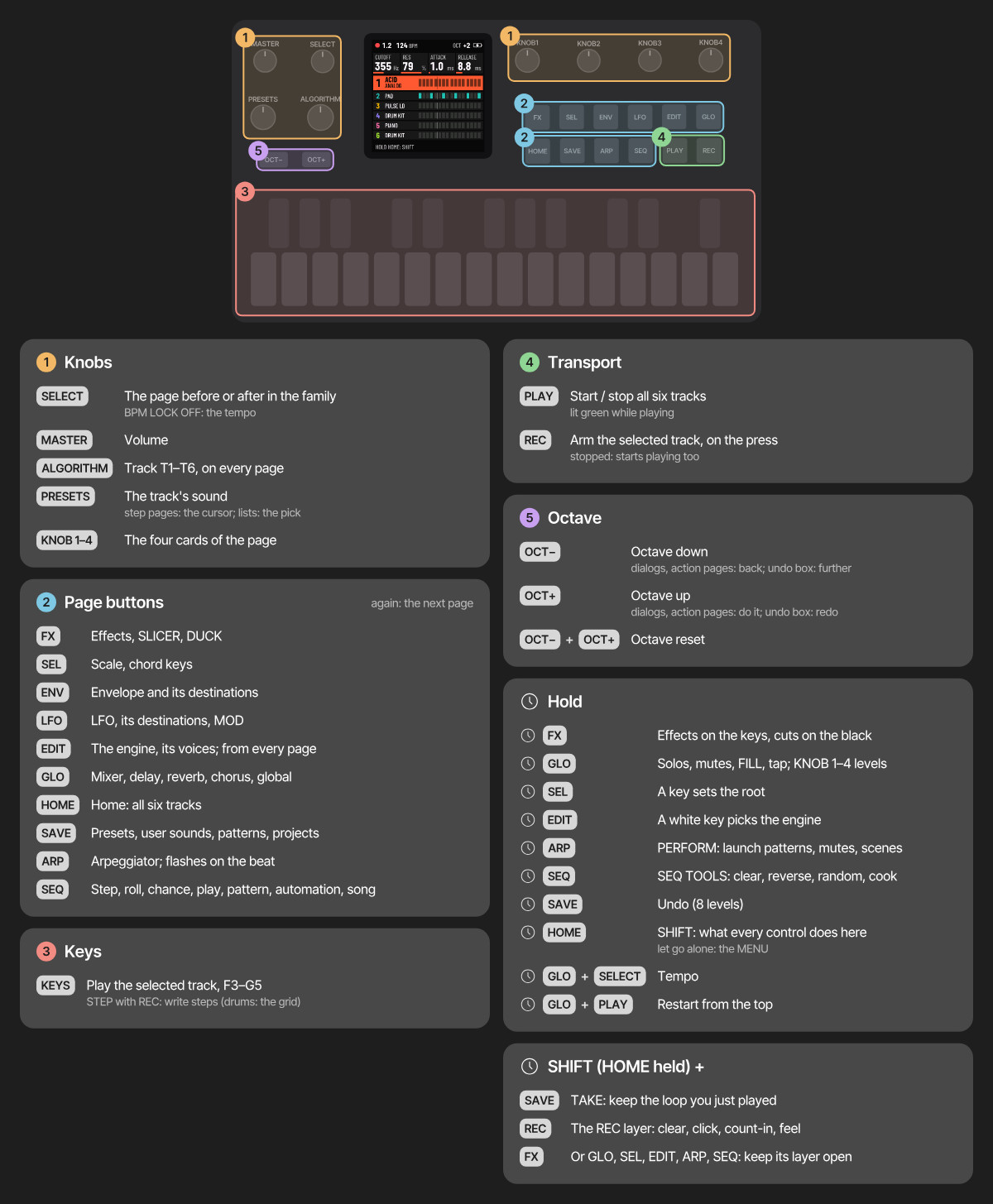
| Control | What it does | Shown in |
|---|---|---|
| MASTER | The volume. | |
| SELECT | The page before or after in the family. With GLO held: the tempo. | |
| ALGORITHM | The track, T1–T6, on every page. In the MENU: the tab. | |
| PRESETS | The track's sound. On NOTES and FEEL: the step cursor (SHIFT + PRESETS: a range); on PATTERN: the direction. In lists: the row. | |
| KNOB 1–KNOB 4 | The four cards across the top of the page. | |
| FX | Tap: the track's effects, SLICER and DUCK. Hold: the FX layer. | |
| SEL | Tap: SCALE and CHORD. Hold: a key sets the root. | |
| ENV | The envelopes, ENV and ENV 2. | |
| LFO | Tap: LFO, LFO 2 and MOD, where the LFO and the envelope go. Hold: MOMENTARY. | |
| EDIT | Tap: the engine's pages and the voices; on NOTES with REC armed, it clears the cursor step. Hold: the engines on the white keys. SHIFT + EDIT on NOTES and FEEL: delete the selection. | |
| GLO | Tap: MIXER, DELAY, REVERB, CHORUS, GLOBAL. Hold: solos, mutes (a tap) and cuts (held), FILL, tap tempo. | |
| HOME | Tap: HOME. Hold: SHIFT and its map. Held and let go alone: the MENU. | |
| SAVE | Tap: PRESETS, USER, PATTERNS, PROJECT. Hold: undo. SHIFT + SAVE: TAKE. | |
| ARP | Tap: the arpeggiator. Hold: PERFORM. | |
| SEQ | Tap: NOTES, FEEL, PATTERN, AUTOMATION, SONG. Hold: SEQ TOOLS. | |
| PLAY | Start and stop; green while playing. With GLO held: from the top. | |
| REC | Arms the selected track; on an armed track, disarms every track. SHIFT + REC: the REC layer. | |
| OCT− OCT+ | The octave; both together reset it. In dialogs: back, and do it. SHIFT + OCT− / OCT+ on NOTES and FEEL: copy and paste the selection. | |
| The keys | F3–G5: notes. On NOTES with REC off, a key picks its note in the selection; on a drum grid the white keys are steps 1–16 and the black keys pick the row. |